Rogue Core Best Settings for Performance and FPS
Rogue Core stuttering or low FPS? Start from the official specs, lower the settings with the best frames-per-cost trade, and use Threat Level and Assault Pace as free performance dials.
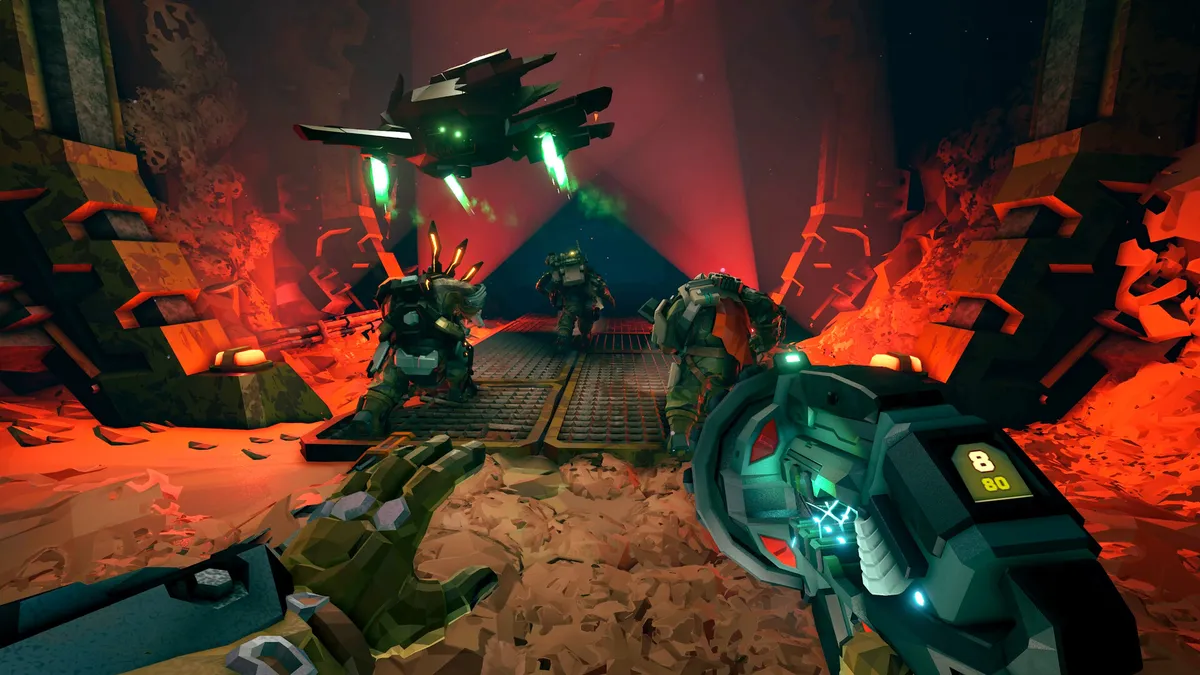
Combat Summary
The direct answer: Rogue Core’s official requirements are modest (GTX 970 minimum, GTX 1050 Ti recommended), so most stuttering is fixable without new hardware. The highest-impact moves in order: drop shadow quality first, reduce volumetric lighting effects second, use resolution scaling before lowering resolution, close background apps eating CPU, and — the trick most players miss — lower your Threat Level and pick Cautious Assault Pace, because enemy density is a performance cost you control from the mission map. If your rig meets the recommended spec and still stutters, the cause is almost always settings or background load, not the game.
Start From the Official Baseline
Official — from the Steam store page (app 2605790), also covered in our Rogue Core PC system requirements and performance baseline:
- Minimum: Windows 10 64-bit, Intel Core i5 7th-gen / AMD Ryzen 5 1500X, 8 GB RAM, GTX 970 / Radeon 290, DirectX 11, 6 GB storage
- Recommended: Intel Core i5-7400 / AMD Ryzen 5 2600 or higher, GTX 1050 Ti / RX 560, DirectX 12
Two facts matter for settings decisions. First, the GPU bar is genuinely low — a GTX 970 is a 2014-era card — which signals real optimization; the game is not asking for much. Second, both tiers list 8 GB RAM, so memory is rarely the bottleneck. PC players at or above the recommended spec who see low FPS should treat it as a settings or system-load problem, not a hardware problem.
Community-tested: players report that at recommended spec, 1080p with a medium-high mix holds a stable framerate in typical missions. If yours does not, work through this guide in order.
The In-Game Settings That Matter Most
Community-tested by players on borderline hardware, ranked by frames gained per visual cost:
- Shadow quality. The single biggest GPU cost in Rogue Core’s dynamically lit caves. High to medium is the best trade in the game — you keep the atmosphere and recover the most frames.
- Volumetric lighting and fog effects. The caves’ atmosphere leans on these, but they are expensive on older cards. Medium is the sweet spot; low only if you are still struggling after shadows.
- Resolution scale before resolution. On a 1440p monitor with a minimum-spec GPU, 85–90% resolution scale looks better than a full drop to 1080p for a smaller clarity cost. This is the most underused setting in the game.
- Effects density. Swarm moments with elemental Expenite upgrades (Update 2’s Spark-Booster, Icicle Strike, and friends) fill the screen with particles. If your FPS only dies during big fights, this is your culprit — lower it one notch before touching anything else.
- Anti-aliasing. Expensive for what it gives you at 1080p on a game with this art style. FXAA or off is fine for most players chasing frames.
Change one setting at a time and test in an actual mission, not the hub — the hub is empty and tells you nothing about swarm performance.
The Free Performance Dials: Threat Level and Assault Pace
This is the part no generic settings guide tells you, and it is specific to Rogue Core’s design.
Official (Update 2): Threat Levels scale enemy count, swarm frequency, enemy HP and movement, aggression, attack frequency, projectile speed, and damage. More enemies on screen means more AI, more projectiles, more particles — a direct performance cost. Community-tested: dropping one Threat Level is often worth more frames than any single graphics setting, because it reduces the worst-case load (stacked waves, dense swarms) rather than the average.
Official (Update 1): Assault Pace (Cautious / Standard / Reckless) controls mission intensity from the mission map. Community-tested: Cautious pace produces calmer missions with fewer simultaneous threats — and measurably smoother performance on borderline rigs. If you are learning the game on old hardware, Cautious on Threat Level 1 is both the easiest and the smoothest way to play. No shame in it; the game designed these dials to be used.
General PC advice (not game-specific): none of this replaces the basics — update GPU drivers, close browsers and launchers eating CPU in the background, and put the game on an SSD if load times between runs bother you. These matter more than most people expect on minimum-spec machines.
Stuttering vs Low FPS: Diagnose Before You Fix
They have different causes:
- Consistently low FPS (always 30–40): GPU-bound. Work the settings list above in order.
- Stuttering with high average FPS (60 average, hitches during swarms): usually CPU spikes from AI/pathing during dense waves, or shader compilation on a first visit to a new biome. Community-tested: this specific pattern improves most from lowering Threat Level and effects density, not from lowering resolution.
- Stuttering in co-op only: network and host performance enter the picture. Try hosting yourself, or check whether the host is on Wi-Fi — packet loss looks exactly like FPS hitches.
Official (Update 1.2): disconnect insurance preserves XP and bonuses if a session ends abruptly, so a crash during your settings experiments costs you far less than it used to. Experiment freely.
Steam Deck and Low-End Laptops
Community-tested: Rogue Core runs on the Steam Deck, but treat it as a minimum-spec machine: 1280×800 with low-medium settings, resolution scale around 80–85%, and Cautious pace on Threat Levels 1–2 for the smoothest experience. Our Steam Deck and controller support notes cover the handheld specifics — and the FPS guide settings above about shadows, volumetrics, and resolution scale apply directly to Deck tuning.
General PC advice: on laptops, plug in. Integrated-graphics power-saving modes will halve your framerate silently, and this is the single most common “the game runs badly on my laptop” cause across all PC games.
Quick Settings Checklist
- Shadows: medium (biggest single gain)
- Volumetrics/lighting effects: medium
- Resolution scale: 85–90% before dropping resolution
- Effects density: lower if FPS dies only in big fights
- Threat Level: one step down is worth more than any graphics toggle
- Assault Pace: Cautious while learning or on old hardware
- Drivers updated, background apps closed, game on SSD
FAQ
What are the best settings for Rogue Core FPS? Shadow quality to medium first, volumetric lighting to medium second, resolution scale at 85–90% before lowering resolution, and effects density down if FPS only drops during big fights. Then use Threat Level and Cautious Assault Pace as gameplay-side performance dials (community-tested).
Can a GTX 970 run Rogue Core? Yes — it is the official minimum GPU (Steam store page). Expect 1080p at low-medium settings; use the settings order above and Cautious pace for the smoothest experience (official specs, community-tested settings).
Why does my FPS drop only during swarms? Dense waves spike CPU (AI/pathing) and GPU (particles) simultaneously — the worst-case load, not the average. Lowering Threat Level reduces worst-case density more effectively than any graphics setting, and effects density specifically targets the particle side (community-tested).
Does lowering resolution or resolution scale help more? Resolution scale, almost always. 85–90% scale on a 1440p monitor looks better than a full drop to 1080p for a smaller clarity cost, because the UI and HUD stay sharp (community-tested, general rendering behavior).
Is Rogue Core CPU or GPU bound? The official minimum CPU is a 7th-gen i5 (2017), which tells you the game is not heavily CPU-bound in typical play — GPU settings dominate. The exception is dense swarm moments on high Threat Levels, where AI and projectile counts can spike CPU load (official specs plus community-tested).
Continue Reading
Don't deploy without all the intel. Check out this related file:
Deep Rock Galactic Rogue Core System Requirements: Can Your PC Run It →