How to Invite Friends in Deep Rock Galactic: Rogue Core
Learn how to easily invite your friends to join your squad in Deep Rock Galactic: Rogue Core. Get ready to tackle alien horrors and procedurally-generated caves together.
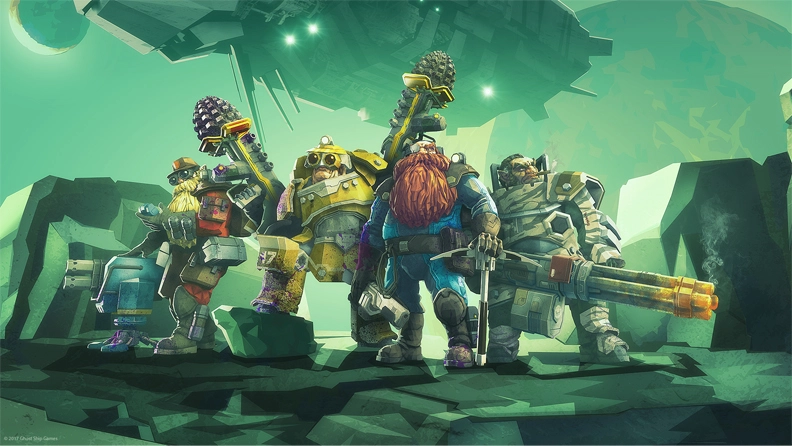
Deep Rock Galactic: Rogue Core, released on May 20, 2026, is a thrilling 1-4 player co-op FPS action roguelite that plunges you into dangerous mining facilities. As an elite dwarven Reclaimer, you’ll fight through hordes of deadly Corespawn in procedurally-generated caves. Playing with friends is key to surviving the treacherous depths, and thankfully, inviting them to your squad is a straightforward process on Steam. This guide will walk you through exactly how to team up with your fellow dwarves and dive into the action together.
Inviting Friends to Your Deep Rock Galactic: Rogue Core Session
Deep Rock Galactic: Rogue Core is designed from the ground up for cooperative play, allowing up to four players to join forces. The primary method for inviting friends to your game session leverages Steam’s robust social features, which are integrated seamlessly with the game.
Step-by-Step Guide to Inviting Friends via Steam
To get your friends into your Deep Rock Galactic: Rogue Core squad, follow these simple steps:
- Launch Deep Rock Galactic: Rogue Core: Start the game through your Steam Library.
- Access the Game Lobby: Once the game has loaded, navigate to the main lobby area. This is where you typically prepare for missions, manage your loadout, and interact with game systems.
- Open the Steam Overlay: While in the game, press Shift + Tab (this is the default keybind) to bring up the Steam Overlay. This overlay provides access to your Steam friends list, chat, browser, and other Steam features without leaving the game.
- Locate Your Friend: In the Steam Overlay, find the “Friends” section. Your online friends will be listed here.
- Send an Invite:
- Right-click on the name of the friend you wish to invite.
- From the context menu that appears, select “Invite to Game.”
- A notification will be sent to your friend, prompting them to join your Deep Rock Galactic: Rogue Core session.
- Confirm Connection: Once your friend accepts the invitation, they should automatically connect to your game lobby. You’ll see their character appear, ready to embark on the next mission.
Joining a Friend’s Game
If a friend has already started a session and you wish to join them, the process is equally simple:
- Receive an Invitation: If your friend sends you an invite, a notification will pop up on your screen (either in Steam or directly in-game if you’re already playing another game). Simply click “Accept” to join their game.
- Join via Steam Friends List: Even without a direct invite, you can join a friend’s ongoing game:
- Open your Steam Friends List (either through the Steam client itself or via the Shift + Tab overlay if you’re in a game).
- Locate your friend’s name. If they are playing Deep Rock Galactic: Rogue Core, their status will indicate “In-Game: Deep Rock Galactic: Rogue Core.”
- Right-click on their name and select “Join Game.” This will launch the game (if it’s not already running) and connect you directly to their lobby.
Understanding Deep Rock Galactic: Rogue Core’s Co-op Experience
Deep Rock Galactic: Rogue Core is built around the excitement and challenge of cooperative play. The game’s description highlights its nature as a “1-4 player co-op FPS action roguelite,” meaning that while you can certainly brave the depths alone, the experience is truly designed to shine when you team up with other Reclaimers.
In this game, you and your squad will delve into hazardous mining facilities teeming with alien horrors known as Corespawn. The procedurally-generated caves ensure that no two expeditions are exactly alike, offering fresh challenges and discoveries with every dive. Success in Deep Rock Galactic: Rogue Core often hinges on effective teamwork, communication, and strategic coordination to overcome the deadly threats and complete your objectives. Whether you’re covering each other during intense firefights, navigating complex cave systems, or managing resources, having a reliable team by your side significantly enhances your chances of survival and extraction.
Essential Considerations for Online Play
Before you and your friends embark on your first mission together, keep these important points in mind to ensure a smooth multiplayer experience:
- Platform: Deep Rock Galactic: Rogue Core is currently available exclusively on Windows PC via Steam. Therefore, all players in your squad must be playing on a Windows PC through the Steam platform to join games together.
- Internet Connection: A stable and reliable internet connection is crucial for online co-op play. Any significant disruptions to your internet service can lead to disconnections or lag, impacting the experience for everyone in the party.
- Game Ownership: Every player who wishes to join a Deep Rock Galactic: Rogue Core session must own a legitimate copy of the game in their Steam library. The game was released on May 20, 2026, and is available for purchase on Steam.
- Game Version: To avoid compatibility issues and ensure everyone can connect, all players should have the latest version of Deep Rock Galactic: Rogue Core installed. Steam typically handles game updates automatically, but it’s always a good idea to verify that your game client is up to date before attempting to play online.
Troubleshooting Common Invite Issues
While inviting friends in Deep Rock Galactic: Rogue Core is generally straightforward, you might occasionally encounter minor issues. Here are a few common problems and potential solutions:
- Friend Not Appearing Online: Ensure your friend is logged into Steam and their online status is set to “Online” or “Away,” not “Offline.”
- Invite Not Received: Sometimes Steam notifications can be missed. Have your friend check their Steam chat window for the invite, or try joining directly via your profile in their Steam Friends List.
- Connection Errors: If you or your friends are having trouble connecting, it could be due to network issues.
- Firewall/Antivirus: Check that your firewall or antivirus software isn’t blocking Deep Rock Galactic: Rogue Core or Steam from accessing the internet. You might need to add exceptions for both.
- Router Settings: Ensure your router’s settings aren’t overly restrictive. Basic troubleshooting like restarting your router can sometimes resolve connectivity problems.
- Steam Server Issues: Occasionally, Steam itself might experience temporary server issues. You can check the official Steam Status page or community forums for any widespread reports.
- Outdated Game Client: As mentioned, ensure everyone has the latest game version. If a friend hasn’t updated their game, they might not be able to join your session.
For persistent or more complex technical issues, it’s always recommended to consult the official Deep Rock Galactic: Rogue Core Steam store page or the official Ghost Ship Games support channels. These resources often provide detailed troubleshooting guides and community support.
Conclusion
Deep Rock Galactic: Rogue Core offers an exhilarating co-op experience, and inviting your friends to join the action is an integral part of that adventure. By utilizing Steam’s built-in friend invite system, you can quickly assemble your dwarven squad and prepare to face the perilous depths of Hoxxes’ mining facilities together. Remember to ensure everyone is on the correct platform, owns the game, and has a stable internet connection for the best possible experience.
Get ready to strategize, blast Corespawn, and mine precious resources with your comrades. For Rock and Stone!
Continue Reading
Don't deploy without all the intel. Check out this related file:
Deep Rock Galactic: Rogue Core on Steam: Your Guide to Release, Price, and Features →